Get Started
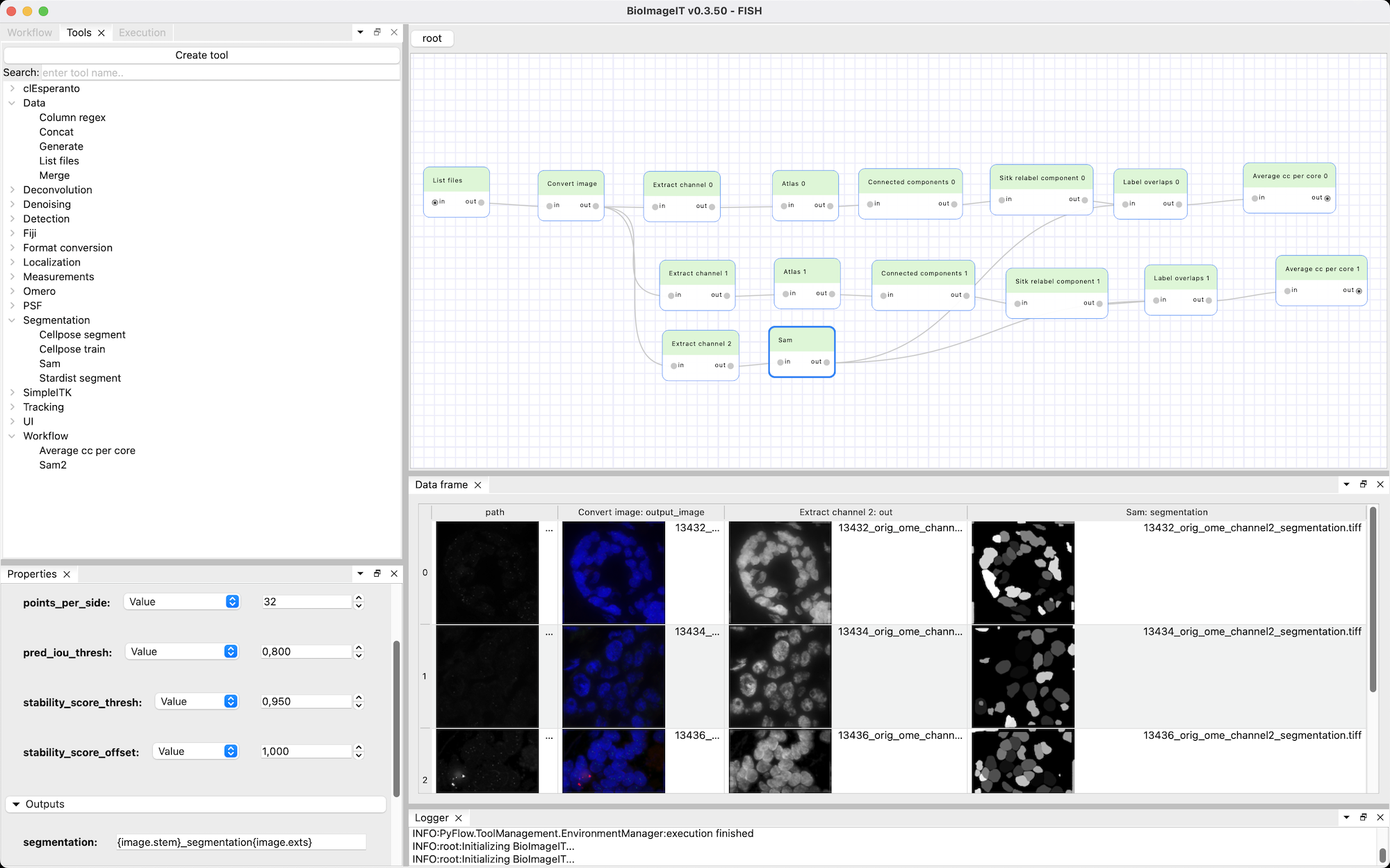 BioImageIT Graphical User Interface
1. Download BioImageIT
Download and extract the archive for your platform, and run the app or executable inside.
This will automatically download the latest BioImageIT sources, create a Conda environment, install the requirements, and run the BioImageIT app.
You will be able to select the BioImageIT version to use in the preferences panel (File menu > Preferences… > BioImageIT version), and whether to auto-update or not.
2. Create a workflow
When BioImageIT opens for the first time, you will be asked to choose a folder path for your first workflow. Choose a location and enter a name for your workflow, BioImageIT will create the workflow folder for you and populate it with the workflow files.
3. Add and connect some nodes
Use the “Tools” tab to add node to your workflow by drag-n-droping any tool on the canvas.
For example, add a “List files” node and a “Cellpose_segmentation” node, and connect them by drag-n-dropping the output pin of the first to the input pin of the second.
Then, select the “List files” and use the browse button of the folderPath parameter in the “Properties” tab to select a folder containing cell images on your computer.
4. Execute the workflow
Finally, execute the workflow with the “Run unexecuted nodes” from the “Execution” tab to compute your segmentations. BioImageIT will create an environment for Cellpose, install its dependencies, and run the segmentation on the images you selected.
To go further, see the tutorials in the next section.